

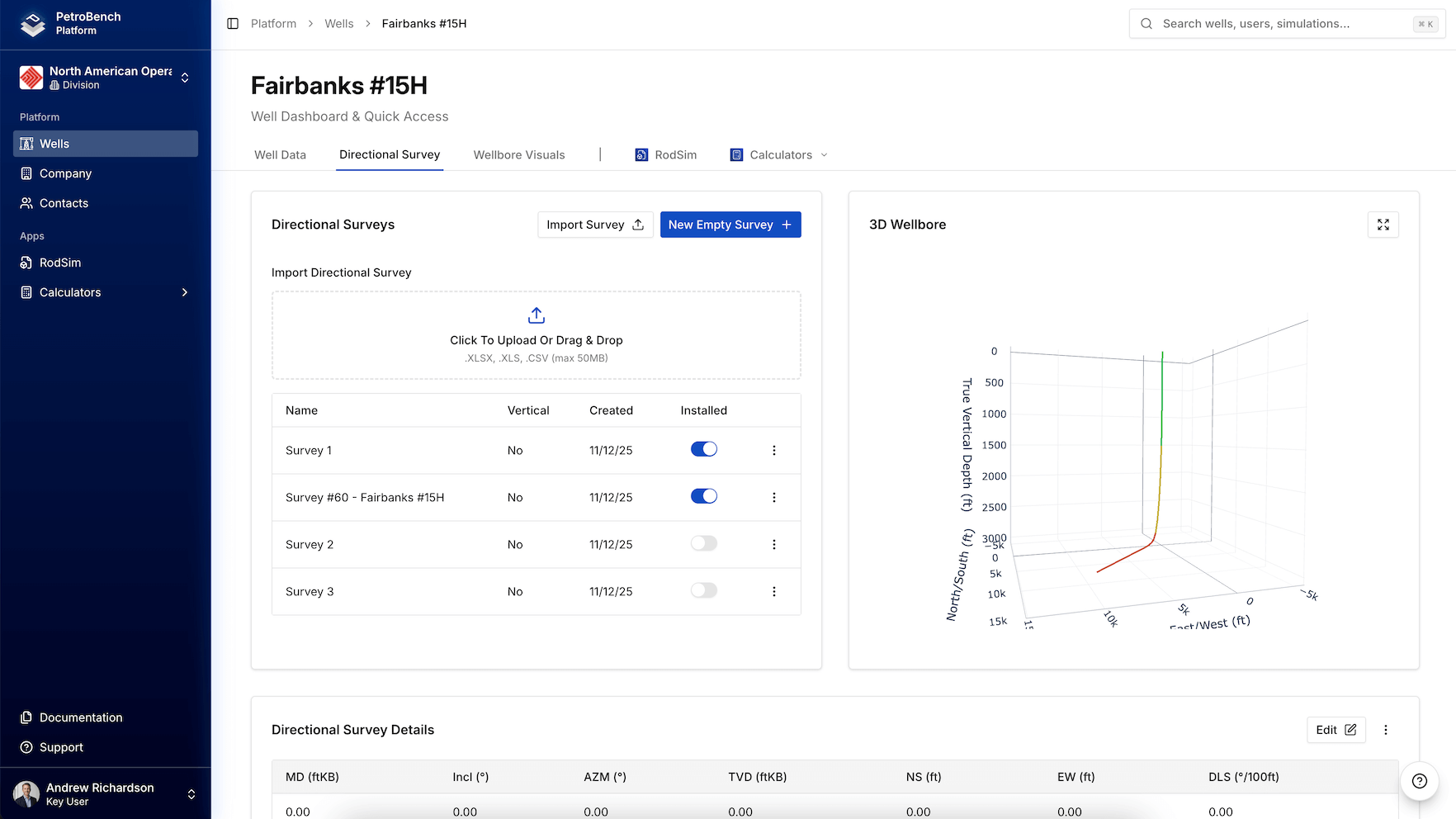
- Measured Depth (MD) - Distance along the wellbore
- Inclination - Angle from vertical (0° = vertical)
- Azimuth - Compass direction (0° = North)
Primary vs. Backup
- Primary - Active survey used for calculations
- Backup - Historical surveys for reference
Creating a Survey
- Go to Well Details > Directional Surveys
- Click Create New Survey
- Enter survey name and date
- Check Is Primary if this is the active survey
Adding Points
Click Add Point:| Field | Range |
|---|---|
| Measured Depth | Increasing values (ft) |
| Inclination | 0-90° |
| Azimuth | 0-360° |
Vertical Well Example
| MD | Inclination | Azimuth |
|---|---|---|
| 0 | 0° | 0° |
| [TD] | 0° | 0° |
Importing Surveys
Supported Formats
- Excel/CSV - .xlsx, .xls, .csv
- RodStar - .rsdx, .rsvx
- SRod - .inp6e, .inp7
Required Columns (Excel/CSV)
| Column | Recognized Headers |
|---|---|
| Measured Depth | MD, Measured Depth, Depth, M.D. |
| Inclination | Inc, Incl, Inclination, Angle |
| Azimuth | Az, Azim, Azimuth, Direction |
Import Steps
- Go to Well Details > Directional Surveys
- Click Import Survey
- Upload your file
- Configure: Survey Name, Date, Set as Primary
- Review preview
- Click Import
File Requirements
- CSV: Comma delimiter, UTF-8 encoding
- Excel: Any sheet name (prefers “Survey” or “Directional”)
- Units: Feet and degrees
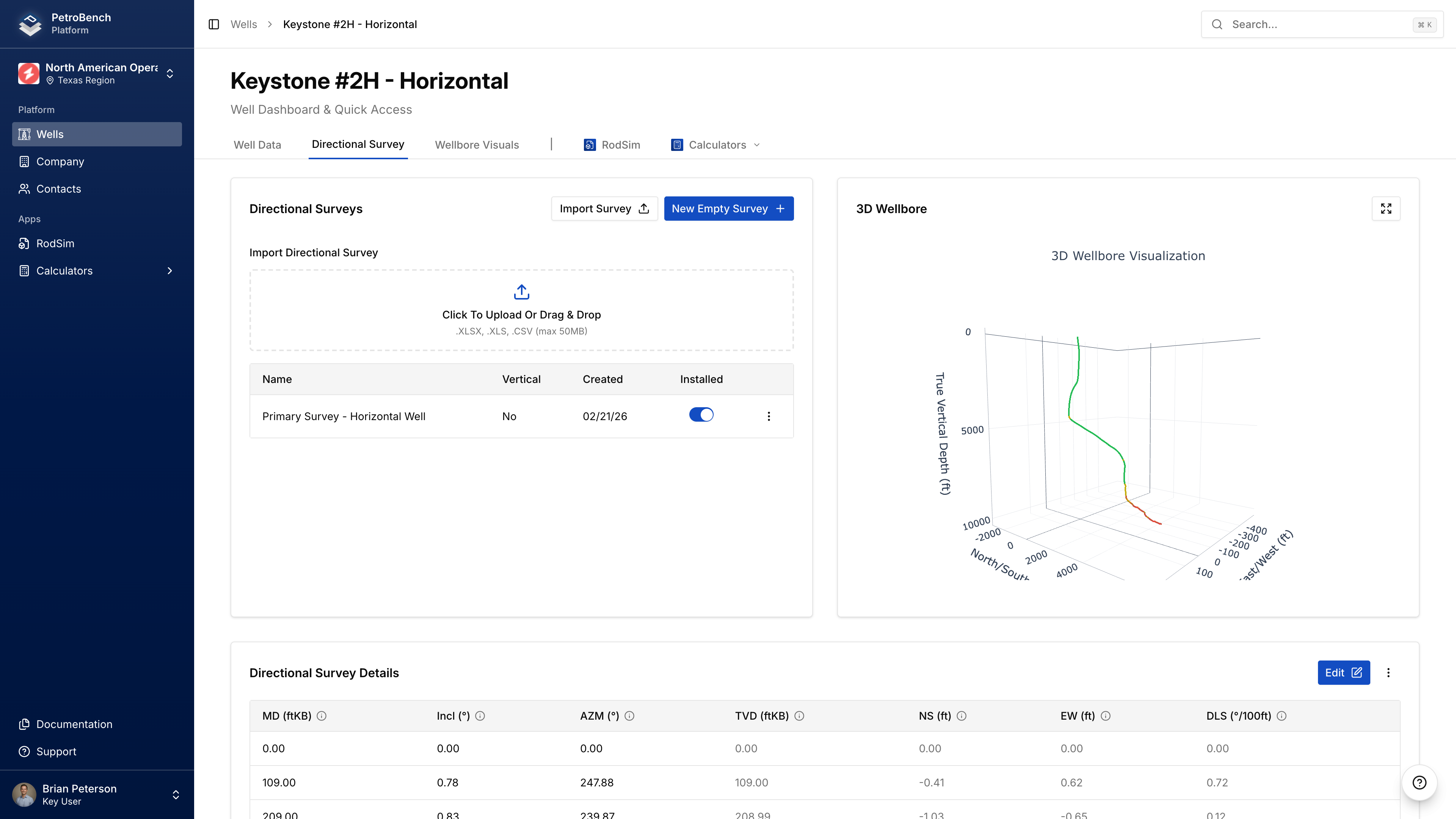
3D Visualization
Troubleshooting
No valid survey points found
No valid survey points found
Check that your file has recognizable headers and numeric data.
MD values must be increasing
MD values must be increasing
Sort your file by MD in ascending order before importing.
Column headers not detected
Column headers not detected
Use standard names: MD, Inclination, Azimuth.