

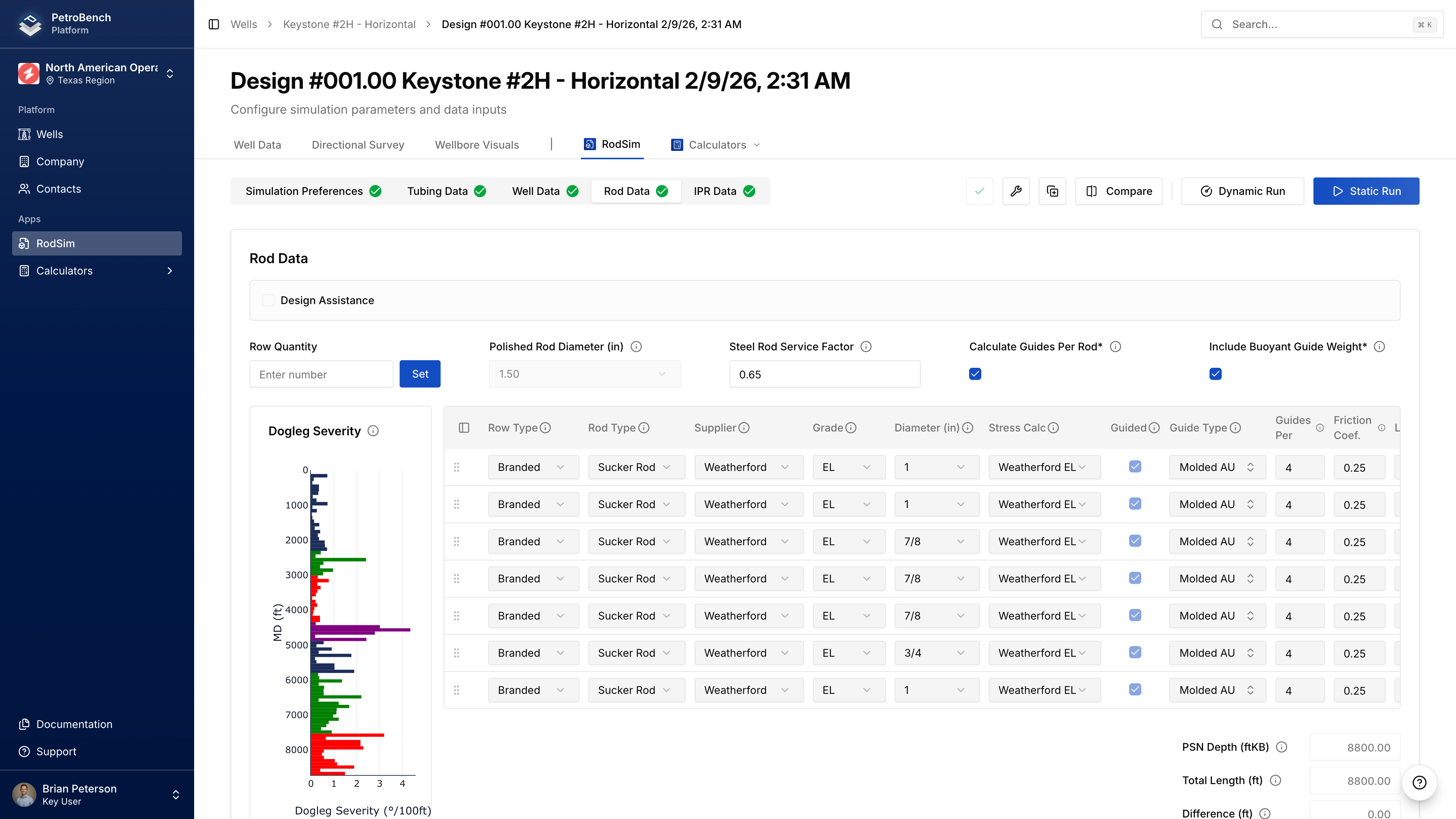
| Method | Best For |
|---|---|
| Manual Entry | New designs, no existing files |
| Import File | Migrating from RodStar or SRod |
Manual Entry
Create a Well
Go to Wells > New Well, enter a name, and click Add Well.You can add detailed well data later. Start with the basics to get going.
Upload Directional Survey
From your well, open the Directional Surveys tab and import your survey file. For vertical wells, you can skip this.Create the Simulation
Click the RodSim tab, then New Simulation to create a blank simulation.Configure Simulation Preferences
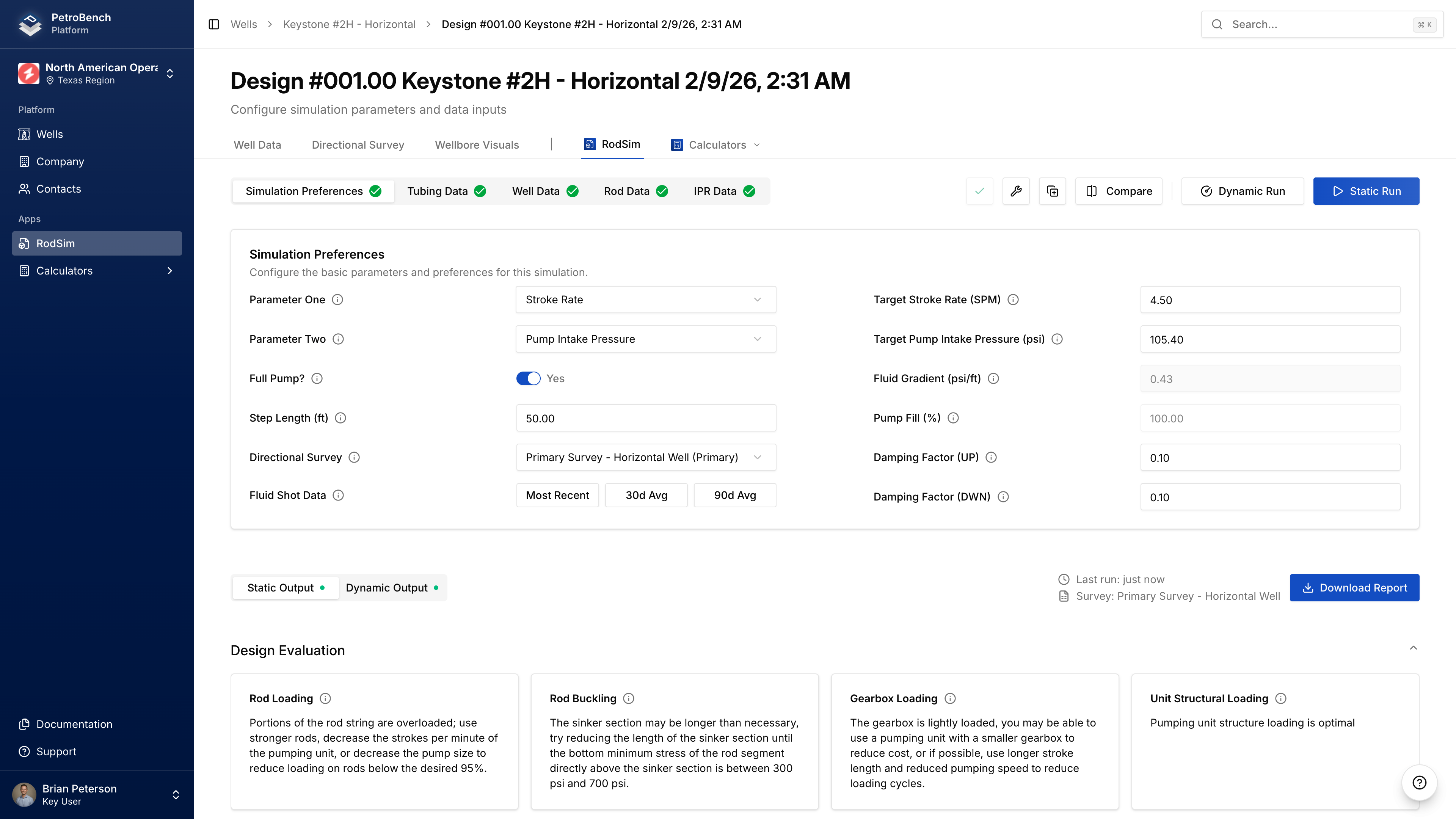
- Fluid gradient and pump fill percentage
- Pump type (API designation) and plunger diameter
- Casing and tubing pressures
- Fluid composition — water cut, oil API gravity
Configure Tubing Data
Set the PSN depth (pump setting depth) — this is the measured depth to your pump. If you have a directional survey loaded, TVD and inclination calculate automatically. Add your tubing string by specifying nominal size, weight, grade, and depth intervals for each section.Configure Rod Details
- Rod type — Sucker Rod, Sinker Bar, or Continuous
- Manufacturer and grade
- Diameter and length
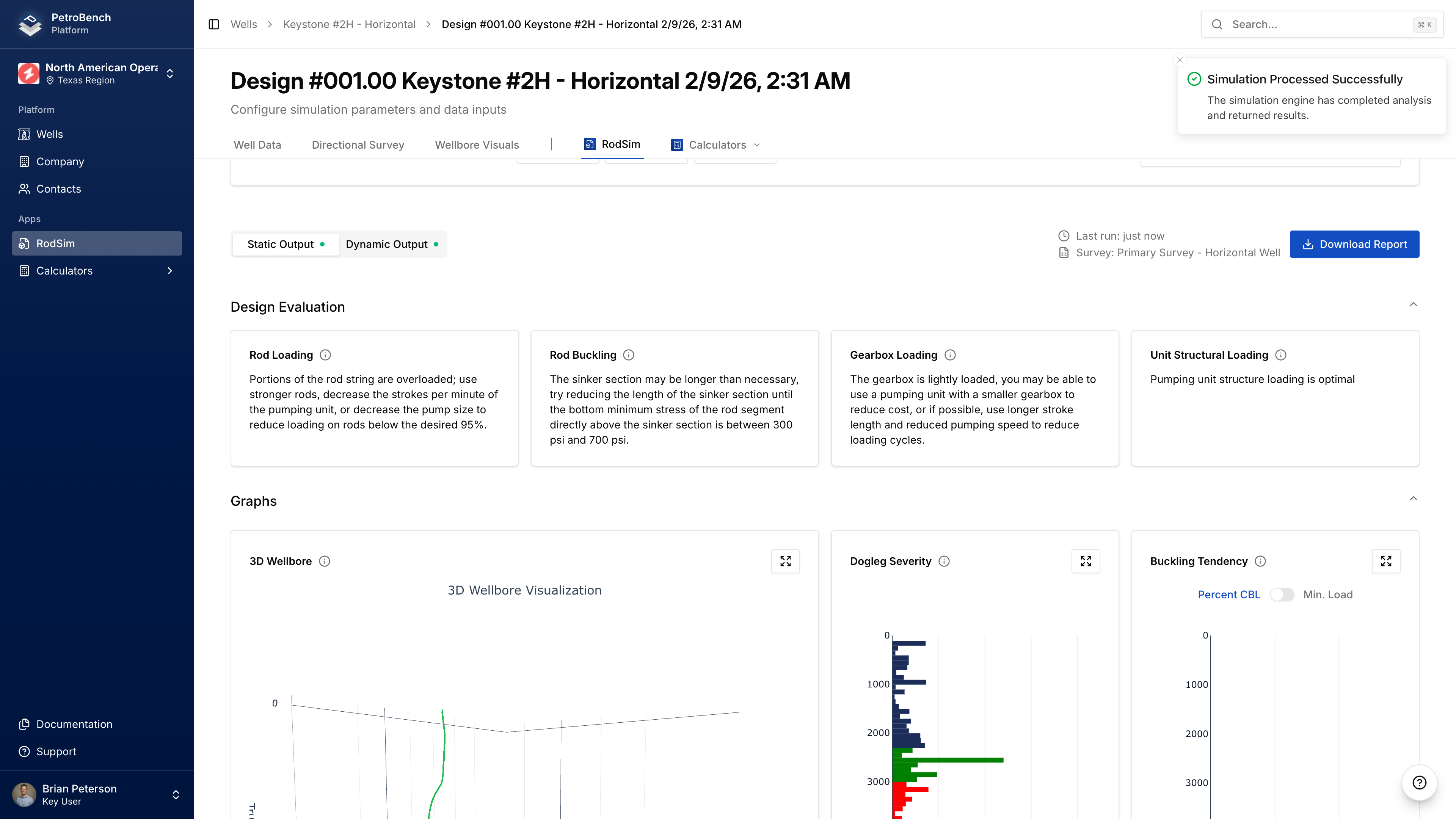
Run Simulation
Review Results
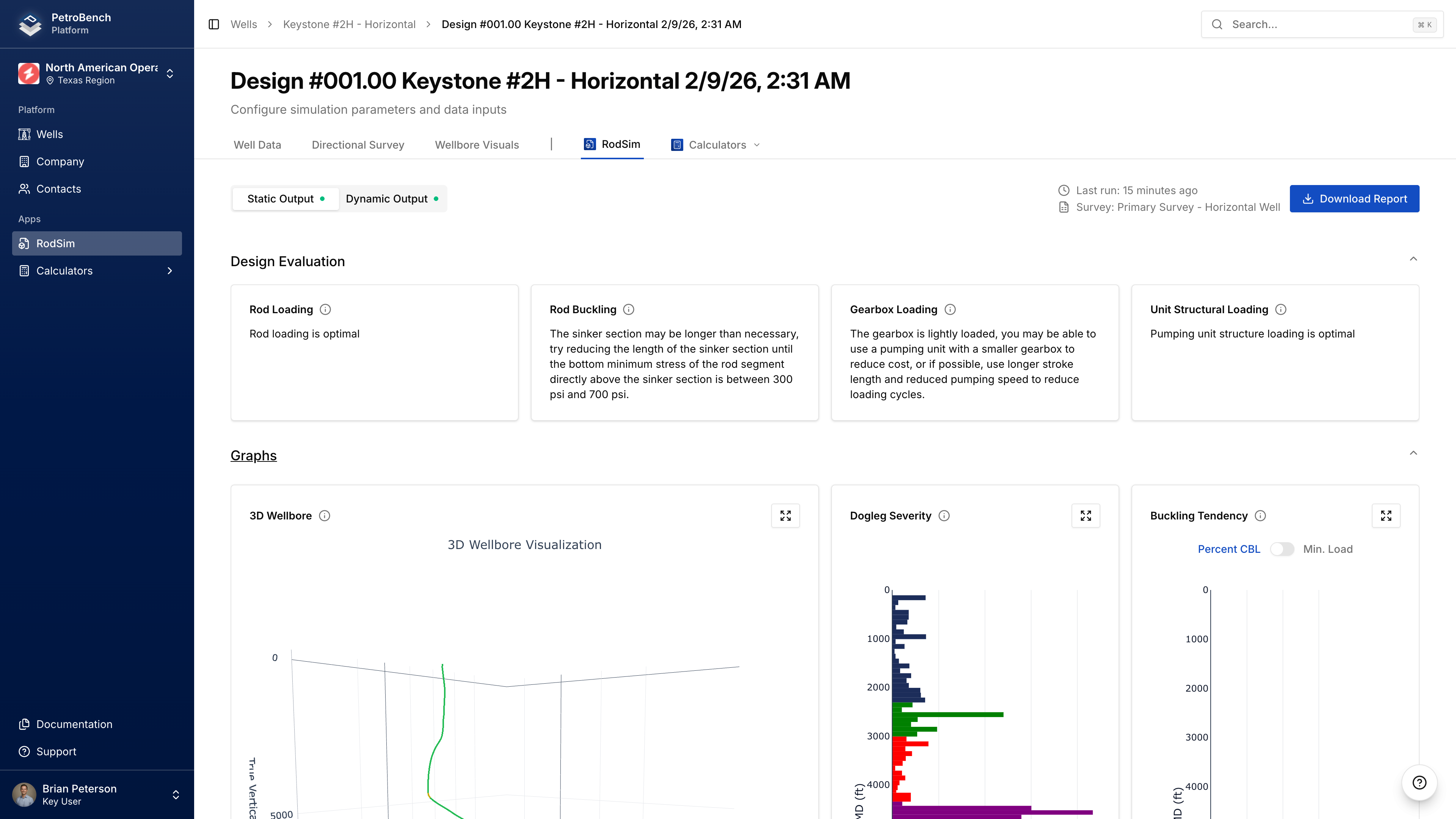
- Design Evaluation — Recommendations for rod loading, buckling, gearbox, and unit structure
- Calculated Results — Fluid/oil production, PPRL, MPRL, required HP, system efficiency
- Pumping Unit Analysis — Gearbox torque, counterbalance effect, structure loading
- Rod String Table — Stress and loading at each taper section
- Graphs — Dynamometer cards, buckling tendency, side/axial loading, 3D wellbore
Import from RodStar or SRod
Import the File
Go to Wells > Import and select your.rsdx, .rsvx, .inp6e, or .inp7 file. This creates both the well and a simulation with data pre-populated.
Verify and Adjust
- Check the Directional Surveys tab to confirm survey data imported correctly
- Open the simulation and review each tab:
- Simulation Preferences — Pumping unit, targets, fluid properties
- Tubing Data — PSN depth, tubing configuration
- Rod Details — Rod string setup
- Update any values that need adjustment for your scenario